Services
Strategy
We find the clearest path from what your business needs to what your website should do.
What’s included
- Page strategy
- Landing page strategy
- Site architecture
- Content planning
- Wireframes
- Migration planning




Branding
We shape a distinct visual identity that works on screen first and carries through everything you make.
What’s included
- Visual identity
- Brand refresh
- Colour & typography
- Moodboards & direction
- Brand guidelines
- Digital brand systems
Recent work


Design
We turn the plan into a distinct, usable design that feels right for your brand and works across every screen.
What’s included
- Website design
- UI design
- Responsive design
- Design systems
- Visual direction
- Content presentation


Development
We build fast, reliable websites in Webflow or with custom code, with the integrations each project needs.
What’s included
- Webflow development
- Custom website development
- Custom interactions
- Performance engineering
- CRM & email integrations
- Booking & payments


SEO & AI search
We make your site easy for search engines and AI assistants to find, understand and point people to.
What’s included
- Technical SEO
- AI search & AEO
- Structured data
- Answer-ready content
- Core Web Vitals
- AI crawler access
Optimisation
We keep improving what happens after launch, using real behaviour data to turn more visitors into enquiries.
What’s included
- Conversion optimisation
- A/B changes
- Landing pages
- Copy reworks
- Analytics & heatmaps
- Monthly improvements
Recent work
Latest
The newest posts, across every topic.



Design
Planning and designing websites, and the tools we use.

Development
Webflow, Astro, Claude Code, CMS choices and what builds really take.


SEO & AI search
Getting found in Google and quoted by AI assistants.



Studio
How we run projects, from proposals to launch week.



Webflow SEO: is it good, and how to set it up
Is Webflow good for SEO? What it handles for you, its built-in SEO tools, the settings to get right at launch, and templates that keep pages search-ready.
- Written by
 Matthew Bishop
- Published
- Updated
- Reading time
- 9 minutes
Yes, Webflow is good for SEO. It handles the technical basics for you and puts the rest in your team’s hands. Hosting, the sitemap, redirects and responsive images come built in, and titles, descriptions, social images, canonicals and structured data are settings your team controls.
What makes the difference is setting those up properly at launch, building templates that make good SEO the default for every new page, and keeping content and redirects in order as the site grows.
What Webflow handles for you
On a paid site plan, a lot of the work most platforms leave to plugins is already done:
- A sitemap that updates itself. Webflow can generate the sitemap and keep it current as pages and CMS items are published (Webflow).
- Redirects. Permanent (301) redirects live in the site settings, and changing a page’s slug can create the redirect for you (Webflow).
- Responsive images. Images uploaded in Webflow get smaller versions for smaller screens automatically, and existing images can be converted to WebP or AVIF to load faster (Webflow).
- Languages. With Webflow Localize, each language or regional version gets its own addresses and the hreflang tags that tell search engines which version to show.
There are no SEO plugins to install, update or trust.
Webflow’s built-in SEO tools
Webflow also has tools for finding and fixing gaps:
- The Audit panel. It checks the current page or the whole site for missing alt text, page titles, meta descriptions and schema markup, alongside accessibility issues. It doesn’t check alt text on images inside components, lightboxes or the CMS, so check those yourself (Webflow).
- Webflow AI in page settings. It can draft titles, descriptions, alt text and schema markup from a page’s content. It uses AI credits, and only writes for the site’s primary language, so translated versions are done by hand. Review everything it writes before publishing.
- AEO agents, on Team and Enterprise plans, scan the site and list prioritised SEO and AEO recommendations to review and apply (Webflow).
- SEO settings on every page and CMS template: titles, descriptions, social images, the indexing toggle and a schema markup field, covered below.
Outside Webflow, Google Search Console and Bing Webmaster Tools show how the site is found and indexed, and a keyword tool shows what people actually search for (the tools we use).
Get these right at launch
These are set once, and they matter most:
- The global canonical URL. Set it to your main domain, with https, so search engines know which address is the real one (Webflow).
- Staging indexing off. Every Webflow site also lives on a webflow.io address. Turning off staging indexing keeps that copy out of search, so it can’t compete with the real site (Webflow).
- The sitemap on, and pages that shouldn’t be found, such as thank-you pages, set not to be indexed. Use the indexing toggle in each page’s settings rather than robots.txt: robots.txt stops crawling, not discovery.
- Redirects in before the domain moves. Every old address should point straight to its closest new page. Our migration plan covers how to map them.
- A real 404 page, with links back into the site.
- Search Console, with the new sitemap submitted on launch day and checked through the first week (the week after launch).
Make good SEO the default in every template
Most pages on a growing site are made by your team, not by us, so the templates should make the right thing automatic:
- Titles and descriptions from fields. On CMS templates, set the SEO title and meta description to pull from the item’s own fields, so every new post or case study gets its own without anyone remembering. Keep titles under 60 characters (Webflow).
- Social images from fields too. Open Graph titles, descriptions and images can come from the same fields. Images in one collection need the same dimensions, and it’s worth leaving Open Graph images uncompressed so they show everywhere they’re shared (Webflow).
- An alt text field. Collections don’t include one by default, so add a text field for it and bind each image’s alt text to that field (Webflow).
- Structured data in the page settings. Webflow has a schema markup field in page settings, and on CMS templates it can take values from the item’s fields. Reference and multi-reference fields aren’t supported there, and markup shouldn’t also be added in custom code, or it’s duplicated (Webflow).
- One H1 per page, by design. Rich text is where a second H1 usually sneaks in, when someone styles a heading inside a post. Set heading levels in the template, and check new pages in Webflow’s Audit panel.
- No empty headings. If a field can be blank, hide its heading when it is, so the page doesn’t publish an empty one.
Images and speed
Fast pages are mostly about images:
- Upload images in Webflow, through the Assets panel or a CMS image field. Images imported by CSV or the API don’t get responsive versions.
- Size them before upload. Webflow’s upload limit is 4 MB, and an image far wider than it’s shown just costs load time.
- Convert JPGs and PNGs to WebP or AVIF in the Assets panel. Conversion replaces the original, so keep a copy (Webflow).
- Watch background images. They don’t get responsive versions, so large ones need a smaller version for phones.
Images are usually the biggest win. We’ve taken Webflow sites from a Lighthouse performance score of 42 to 94 in under a week, without a rebuild, and across 47 Webflow sites, optimising images alone lifted performance scores by 15 to 25 points. More in how to improve a Webflow Lighthouse score.
A checklist for every new page
Give this to whoever publishes. It takes a couple of minutes per page:
- A title under 60 characters, with what the page is about near the start.
- A description that says what someone will find, in about 150 characters.
- A short, readable slug.
- One H1, and headings in order.
- Alt text on every meaningful image.
- A social image that looks right when shared.
- Links to two or three related pages, and from one existing page to the new one.
- The indexing toggle off for pages that shouldn’t appear in search.
After launch, search upkeep becomes part of looking after the site: redirects when content moves, settings on every new page, and Search Console checked regularly (Webflow maintenance: what support includes).
What we’ve seen on real sites
- Skip changed its name and its domain, which can undo years of rankings. The new site kept the old one’s structure, all 47 articles and resources kept the same addresses, and the old domain redirects page for page. Skip’s rankings held through the move.
- Smokeball runs three regional sites selling the same product. Every page declares its own canonical address and page titles name the right country, so search engines see three distinct sites rather than copies of one. Moving to the new builds took 399 redirects for Australia and 246 for the UK, with no chains.
- Altus launched with structured data for the organisation, its software, articles and breadcrumbs, FAQ markup on its three product pages, and titles, descriptions and social images set throughout. A week after launch its marketing manager wrote that there were “no SEO rankings dropping off a cliff”.
- Fresh Clinics stores more than 90 FAQs once in its CMS and shows each on the pages it belongs to. They were written with its SEO agency to answer the questions nurses actually search for.
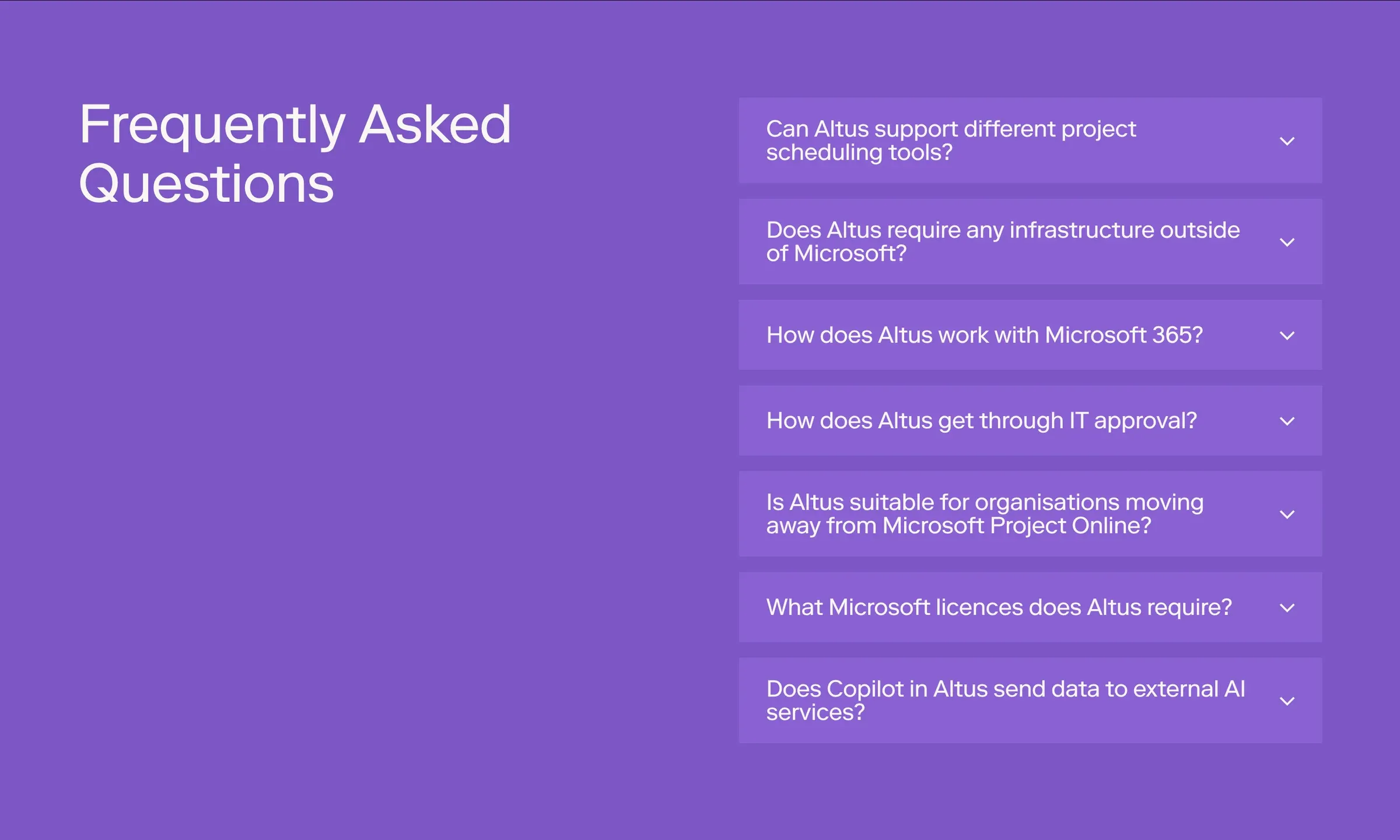
FAQs on Altus’s site answer the questions its buyers ask, such as IT approval and Microsoft licences. Its three product pages carry FAQ markup for search engines.
Search and AI answers
The same foundations serve AI search. Google says its AI Overviews and AI Mode need nothing beyond good SEO, so clear pages, answers first and accurate structured data do double duty. We’ve written up what we did on our own site in writing pages that AI assistants can quote.
Questions we get asked
Is Webflow good for SEO?
Yes. Webflow gives you clean, fast pages, an automatic sitemap, redirects, responsive images, and full control of titles, descriptions, canonicals and structured data, without plugins. Rankings still depend on what your pages say and who links to them.
Is Webflow or WordPress better for SEO?
Both can rank well. Webflow builds in what WordPress needs plugins for, such as the sitemap, redirects, responsive images and structured data fields, so there’s less to install and keep updated. WordPress offers more SEO plugins and fine control. For most marketing teams, Webflow is the simpler way to get it right. See Webflow vs WordPress.
What SEO tools does Webflow have?
Webflow has an Audit panel that checks pages for missing titles, descriptions, alt text and schema markup, and Webflow AI can draft those for you to review. Every page and CMS template has SEO settings and a schema markup field, and Team and Enterprise plans add AEO agents that suggest fixes across the site.
Does Webflow create a sitemap automatically?
Yes. Webflow can generate the sitemap and update it as you publish pages and CMS items. Pages set not to be indexed are left out, and the sitemap’s address is added to your robots.txt for you.
Should we stop Google indexing the webflow.io address?
Yes. Every Webflow site also lives on a webflow.io address, and turning off staging indexing in the site’s SEO settings keeps that copy out of search. It needs a paid site plan or workspace.
Can Webflow add schema markup to CMS pages?
Yes. Page settings have a schema markup field, and on CMS templates it can pull values from each item’s fields, so every post or case study gets its own structured data. Reference fields aren’t supported there.
How do you optimise Webflow for SEO?
Set the basics at launch: a title and description for every page, the sitemap submitted in Search Console, redirects for anything that moved, and the indexing toggle off for pages that shouldn’t rank. Then build SEO fields into every CMS template, so each new page is search-ready by default, and check Search Console regularly.
If you’d like your Webflow site checked, or a new one set up this way from the start, see our SEO & AI search service or tell us about your site.
This guide is part of Webflow for marketing teams, which brings together everything we’ve written on choosing, building and running a Webflow site.
Sources
- Webflow, Create a sitemap in Webflow
- Webflow, Set canonical tags to improve SEO
- Webflow, Disable search engine indexing
- Webflow, Add SEO title and meta description
- Webflow, Control the look of social shares with Open Graph
- Webflow, Include alt text on images
- Webflow, Audit and improve SEO & AEO with Webflow AI
- Webflow, Add schema markup in Webflow
- Webflow, Responsive images and Image conversion tool
- Webflow, How do I set up redirects in Webflow?
- Google Search Central, AI features and your website