Services
Strategy
We find the clearest path from what your business needs to what your website should do.
What’s included
- Page strategy
- Landing page strategy
- Site architecture
- Content planning
- Wireframes
- Migration planning




Branding
We shape a distinct visual identity that works on screen first and carries through everything you make.
What’s included
- Visual identity
- Brand refresh
- Colour & typography
- Moodboards & direction
- Brand guidelines
- Digital brand systems
Recent work


Design
We turn the plan into a distinct, usable design that feels right for your brand and works across every screen.
What’s included
- Website design
- UI design
- Responsive design
- Design systems
- Visual direction
- Content presentation


Development
We build fast, reliable websites in Webflow or with custom code, with the integrations each project needs.
What’s included
- Webflow development
- Custom website development
- Custom interactions
- Performance engineering
- CRM & email integrations
- Booking & payments


SEO & AI search
We make your site easy for search engines and AI assistants to find, understand and point people to.
What’s included
- Technical SEO
- AI search & AEO
- Structured data
- Answer-ready content
- Core Web Vitals
- AI crawler access
Optimisation
We keep improving what happens after launch, using real behaviour data to turn more visitors into enquiries.
What’s included
- Conversion optimisation
- A/B changes
- Landing pages
- Copy reworks
- Analytics & heatmaps
- Monthly improvements
Recent work
Latest
The newest posts, across every topic.



Design
Planning and designing websites, and the tools we use.



Development
Webflow, Astro, Claude Code, CMS choices and what builds really take.
SEO & AI search
Getting found in Google and quoted by AI assistants.



Studio
How we run projects, from proposals to launch week.



How to add another language to a Webflow site
Adding a second language to a Webflow site after launch: what to translate, which Localize plan, reviewing before it goes live, SEO and the language switcher.
- Written by
 Matthew Bishop
- Published
- Updated
- Reading time
- 5 minutes
To add a language to a live Webflow site, add Webflow Localize to the site plan, add the new language as a locale with publishing switched off, translate the pages, CMS items and page settings, have a fluent speaker review everything, then add a language switcher and publish the locale. Your existing pages keep their addresses, so the move doesn’t put your current rankings at risk. The new language sits in its own folder, such as /de.
We did exactly this for Altus. A week after its new English site launched in July 2026, Altus asked for German. German went live in September, once the translations were ready, and more than 100 German pages now sit beside the English ones on the same Webflow site.
1. Decide what the new language needs
Not everything has to be translated on day one. List what visitors in the new market will actually use:
- Static pages, such as the home, product and pricing pages.
- CMS content, such as case studies, integrations and blog posts. Some collections may stay in English at first.
- Components shared across pages, like the navigation, footer and calls to action.
- Forms and thank-you pages, including the messages visitors see after submitting.
- SEO fields: page titles, descriptions, social images and image alt text.
- Anything outside Webflow that the site sends people to, such as CRM forms, emails or a booking tool. These need their own versions, set up in those tools.
2. Choose the Localize plan
Localize is priced per locale, on top of the site plan: Essential is US$9 a month and Advanced US$29, billed yearly, as of 5 November 2026 (Webflow pricing). The choice usually comes down to page addresses. Advanced lets each page have an address in the new language, which Altus’s German pages use under /de. On Essential, the German pages sit under /de with English addresses.
The full feature comparison is in Webflow Localization: how to set it up.
3. Add the locale, and keep it unpublished
Add the language as a secondary locale. It starts as a copy of your main site and inherits everything until you change it. Keep publishing switched off for the new locale while you work: the English site carries on as normal, and the new language goes live only when it’s ready.
A site built from components makes this much easier. Because the new locale inherits each component, translating the navigation or a call to action once changes it everywhere.
4. Translate, then review
Webflow’s AI translation (how its auto translate works) is a good first draft for static pages, components and CMS items, within each plan’s monthly word allowance. Then:
- Have a fluent speaker review every page. Product terms, tone and anything legal need a person who knows the market.
- Exclude what shouldn’t change, such as product names or legal text, with translation exclusion rules.
- Check the layout. German words and sentences often run longer than English, so look for buttons, headings and navigation items that wrap or overflow.
Most of the time in a project like this usually goes on translation and review, not setup, so line up your reviewers early.

An Altus section on the English site.
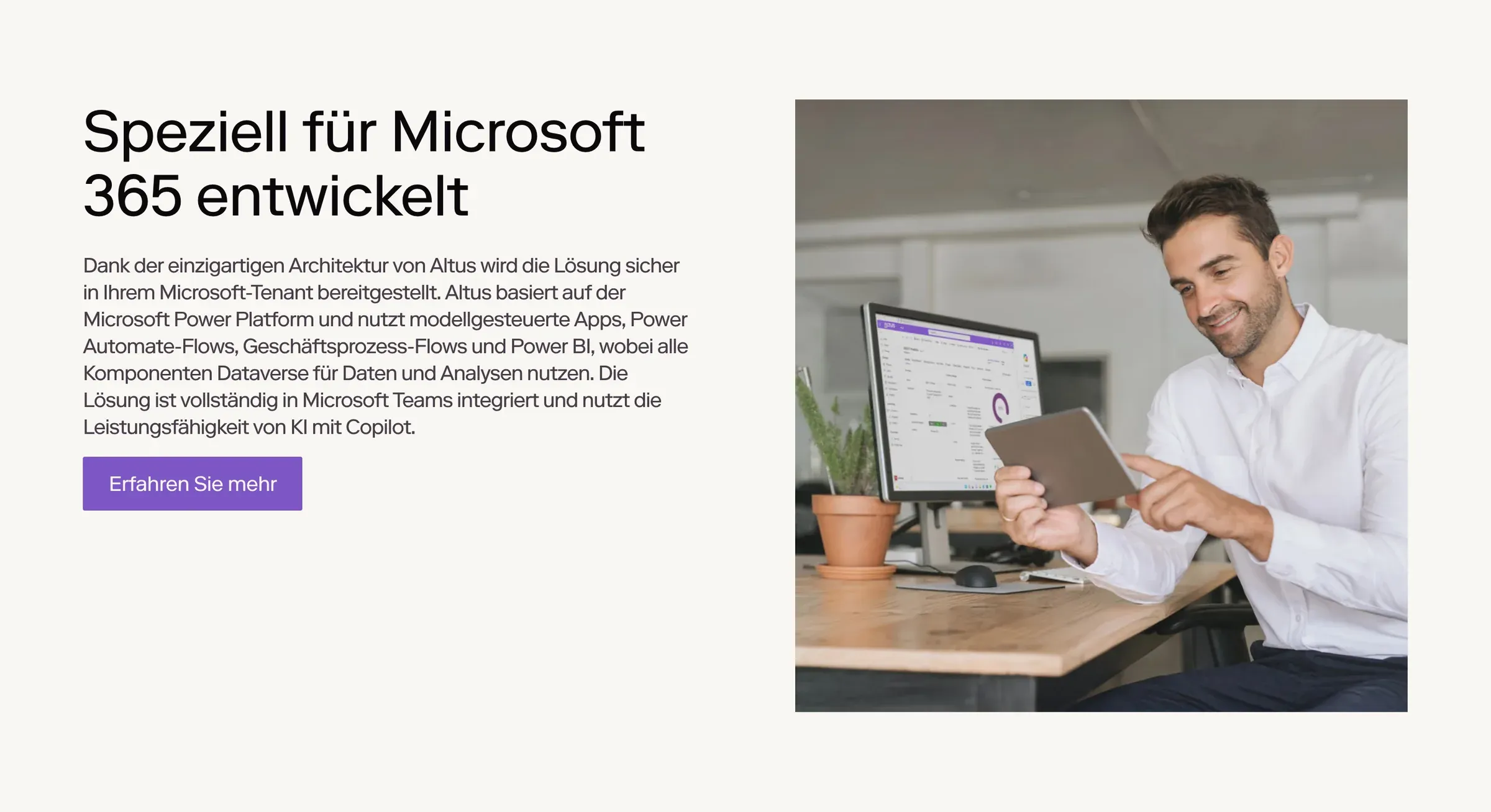
The same section under /de, inheriting the design and translated within the same Webflow site.
5. Write SEO fields for the new market
Translate page titles and descriptions for how people search in that language, not word for word. On Advanced, give each page an address in the new language. Turn on automatic hreflang in the Localize SEO settings, so search engines know each German page is the alternative to an English one.
6. Add a language switcher
Visitors need a way to change language on every page (how to build one). Altus has a switcher in the navigation and the footer, moving between English and Deutsch on whichever page you’re on. On Advanced and Enterprise, Webflow can also send first-time visitors to the version matching their browser’s language.
7. Publish, then check
- Switch publishing on for the new locale and publish the site.
- Open the new language’s home page and a CMS page, and use the switcher both ways.
- Check the sitemap lists the new pages, with hreflang.
- Inspect a few new pages in Search Console, and watch the new folder’s performance over the following weeks.
If the site previously had the language somewhere else, such as a separate domain or an old subfolder, redirect each old address to its new page before you publish (website migration SEO).
Questions we get asked
Can you add a language to an existing Webflow site?
Yes. Add Webflow Localize to the site plan and add the language as a new locale. It starts as a copy of your site, in its own folder such as /de, and you translate it before publishing. The existing pages and their addresses don’t change.
How long does it take to add a language?
The setup is quick; translation and review take most of the time. Altus asked for German a week after its English site launched in July, and German went live in September, once the translations were ready. Plan around how fast your reviewers can work.
Will adding a language affect our SEO?
Not the existing pages: their addresses and content stay the same. The new language gets its own pages, linked to the originals by hreflang tags, so search engines show each audience its own version. Write titles and descriptions for how people search in the new language.
Can AI translate our Webflow site?
Webflow Localize includes AI translation for pages, components and CMS items, with a monthly word allowance per locale. Treat it as a first draft: have a fluent speaker review it, especially product terms and anything legal, before the language goes live.
If you’re planning a new language, see our Webflow and custom development service, or tell us about your site.