
Services
Strategy
We find the clearest path from what your business needs to what your website should do.
What’s included
- Page strategy
- Landing page strategy
- Site architecture
- Content planning
- Wireframes
- Migration planning




Branding
We shape a distinct visual identity that works on screen first and carries through everything you make.
What’s included
- Visual identity
- Brand refresh
- Colour & typography
- Moodboards & direction
- Brand guidelines
- Digital brand systems
Recent work


Design
We turn the plan into a distinct, usable design that feels right for your brand and works across every screen.
What’s included
- Website design
- UI design
- Responsive design
- Design systems
- Visual direction
- Content presentation


Development
We build fast, reliable websites in Webflow or with custom code, with the integrations each project needs.
What’s included
- Webflow development
- Custom website development
- Custom interactions
- Performance engineering
- CRM & email integrations
- Booking & payments


SEO & AI search
We make your site easy for search engines and AI assistants to find, understand and point people to.
What’s included
- Technical SEO
- AI search & AEO
- Structured data
- Answer-ready content
- Core Web Vitals
- AI crawler access
Optimisation
We keep improving what happens after launch, using real behaviour data to turn more visitors into enquiries.
What’s included
- Conversion optimisation
- A/B changes
- Landing pages
- Copy reworks
- Analytics & heatmaps
- Monthly improvements
Recent work


Latest
The newest posts, across every topic.



Design
Planning and designing websites, and the tools we use.



Development
Webflow, Astro, Claude Code, CMS choices and what builds really take.

SEO & AI search
Getting found in Google and quoted by AI assistants.


Studio
How we run projects, from proposals to launch week.



Webflow Localization: how to set it up
Webflow Localization set up step by step: locales, translation, translated URLs, SEO, redirects and routing, from the multi-language Webflow sites we've built.
- Written by
 Matthew Bishop
- Published
- Reading time
- 5 minutes
To set up Webflow Localization, add the Localize add-on to your site plan, add a secondary locale for each language or country, then translate what that locale inherits from your main site: static pages, CMS items and page settings. Webflow adds hreflang tags and a localised sitemap for you. Before you publish, add redirects for each locale’s old addresses, because your existing redirects won’t cover them, and add a locale switcher so visitors can change version.
We’ve set Localization up for three very different sites: Altus in English and German, and Smileyscope and Fresh Clinics in Australian and US versions. Here’s the order we do it in. If you’re still deciding between one site and several, start with multi-country websites: one site or several?
1. Choose the plan
Localize is priced per locale, on top of the site plan. Your primary language isn’t counted.
| Essential | Advanced | |
|---|---|---|
| Per locale, billed yearly | US$9 a month | US$29 a month |
| Locales you can add | Up to 3 | Up to 10 |
| AI translation | 10,000 words per locale a month | 50,000 words per locale a month |
| Translated page addresses | – | Yes |
| Automatic visitor routing | – | Yes |
From webflow.com/pricing, read 21 October 2026. See Webflow pricing: which plan you need for the site plans.
Decide on translated page addresses before you start. Altus’s German pages have German addresses, which needs Advanced. A regional version in the same language, like an Australian site beside a US one, may not need them.
2. Add your locales
Each locale is a language, or a language and a country, such as German, or English (Australia). It gets a subdirectory, and you choose which version sits at the root:
- Altus: English at the root, German under /de.
- Fresh Clinics: the US at the root, Australia under /en-au.
- Smileyscope: both under their own folders, /en-au and /en-us.
A new locale starts as a copy. It inherits everything from the primary locale until you change it, and you can reset anything you’ve changed to inherit again (Webflow).
3. Translate the content
Translate static pages, components and CMS items with Webflow’s AI translation, your own translations or a translation app. A few things we’ve learned:
- Exclude what shouldn’t change. Translation exclusion rules keep particular pages, components or CMS fields, such as legal text, out of automatic translation.
- Have a fluent person review it. AI translation is a draft. Altus asked for German a week after its English site launched in July 2026, and German went live in September, once the translations were ready. More than 100 German pages now sit beside the English ones.
- Regional versions need rewriting, not translating. Fresh Clinics’ markets use different words for the same thing: “start a med spa” in the US is “start a cosmetic clinic” in Australia. Those pages are written for each market.
- Watch the word allowance. AI translation uses each locale’s monthly words. When they run out, you can keep going with Webflow AI credits.
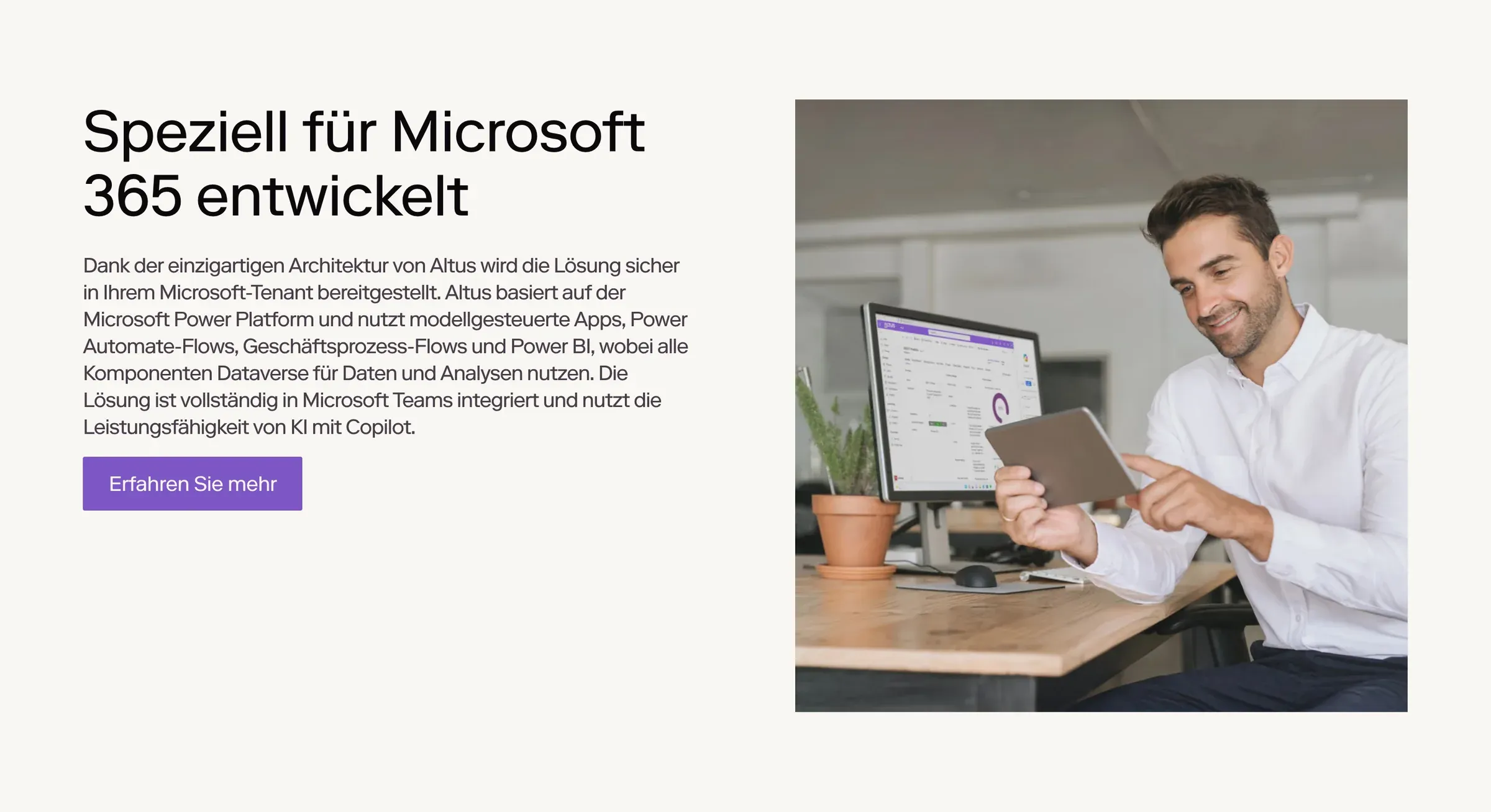
A section of Altus's German site, under /de on the same Webflow site as the English one.
4. Localise page settings and addresses
For each locale, set the page title, meta description and other page settings, and on Advanced, the page’s address. Write titles for how people search in that market, not a word-for-word translation. CMS collection pages take their localised fields from each item.
5. Add redirects for every locale
This is the step most often missed. Webflow’s 301 redirects work from your root domain and don’t apply to localised addresses or subdirectories. If /old-page and /de/old-page should both go to a new page, that’s two redirect rules (Webflow). When we add a locale to a site that already ranks, we map each locale’s old addresses as carefully as the main site’s. See website migration SEO.
6. Check hreflang and the sitemap
With automatic generation on in the Localize panel’s SEO settings, Webflow adds hreflang tags to each page and to the auto-generated sitemap, and updates them when you publish. Search engines only need one of the two. Two things to check:
- A custom sitemap won’t have them. If you’ve replaced Webflow’s sitemap, add hreflang yourself.
- Unpublished locales are left out. Only locales with publishing turned on appear in the sitemap.
7. Route visitors, and let them choose
On Advanced and Enterprise, Webflow sends a first-time visitor to the locale that matches their browser’s language, with a 302 redirect. It goes by language, not location: a locale set to English (Australia) won’t catch a browser set to plain English. Anyone who arrives on a specific address stays there.
Whatever the routing, add a locale switcher. Altus has one in the navigation and the footer, switching between English and Deutsch on any page. On Fresh Clinics, visitors are sent to the version for their country, and if they choose the other one, the site remembers their choice.
8. Check after publishing
- Open each locale’s home page and a CMS page, and switch between versions with the switcher.
- Check the sitemap lists each locale’s pages.
- Inspect a few translated pages in Search Console to check they can be indexed.
- Watch each locale’s Search Console performance for the first few weeks.
Questions we get asked
Does Webflow translate sites automatically?
Webflow Localize includes AI translation for static pages, components and CMS content, with a monthly word allowance per locale: 10,000 words on Essential and 50,000 on Advanced, as of October 2026. Have a fluent speaker review it before you publish.
Can each language have its own URLs in Webflow?
Yes, on the Advanced Localize plan or above. Each locale already gets its own subdirectory, such as /de, and Advanced adds translated page addresses within it. Altus’s German pages use German addresses under /de.
Do Webflow redirects work for localised pages?
Not automatically. Webflow’s 301 redirects apply from the root domain, not to localised addresses or subdirectories, so /old-page and /de/old-page each need their own redirect rule to the new page.
Why isn’t Webflow sending visitors to their language?
Automatic routing is on the Advanced and Enterprise plans only, and it matches the browser’s language. A locale with a country, such as English (Australia), won’t catch a browser set to plain English, and visitors arriving on a specific page stay on it.
How much does Webflow Localization cost?
On 21 October 2026, Localize is US$9 a month per locale on Essential and US$29 on Advanced, billed yearly, on top of the site plan. Advanced adds translated URLs, automatic routing and up to 10 locales.
Sources
- Webflow Help Center, Webflow Localize overview, read 21 October 2026
- Webflow Help Center, Localized SEO and locale routing, read 21 October 2026
- Webflow, Plans & pricing, read 21 October 2026