
Services
Strategy
We find the clearest path from what your business needs to what your website should do.
What’s included
- Page strategy
- Landing page strategy
- Site architecture
- Content planning
- Wireframes
- Migration planning




Branding
We shape a distinct visual identity that works on screen first and carries through everything you make.
What’s included
- Visual identity
- Brand refresh
- Colour & typography
- Moodboards & direction
- Brand guidelines
- Digital brand systems
Recent work


Design
We turn the plan into a distinct, usable design that feels right for your brand and works across every screen.
What’s included
- Website design
- UI design
- Responsive design
- Design systems
- Visual direction
- Content presentation


Development
We build fast, reliable websites in Webflow or with custom code, with the integrations each project needs.
What’s included
- Webflow development
- Custom website development
- Custom interactions
- Performance engineering
- CRM & email integrations
- Booking & payments


SEO & AI search
We make your site easy for search engines and AI assistants to find, understand and point people to.
What’s included
- Technical SEO
- AI search & AEO
- Structured data
- Answer-ready content
- Core Web Vitals
- AI crawler access
Optimisation
We keep improving what happens after launch, using real behaviour data to turn more visitors into enquiries.
What’s included
- Conversion optimisation
- A/B changes
- Landing pages
- Copy reworks
- Analytics & heatmaps
- Monthly improvements
Recent work
Latest
The newest posts, across every topic.



Design
Planning and designing websites, and the tools we use.

Development
Webflow, Astro, Claude Code, CMS choices and what builds really take.


SEO & AI search
Getting found in Google and quoted by AI assistants.



Studio
How we run projects, from proposals to launch week.



How to build a website with Claude
How to build a website with Claude, step by step: using Claude Code from Paper designs to launch, with the stack, the rules, previews and real examples.
- Written by
 Matthew Bishop
- Published
- Updated
- Reading time
- 9 minutes
To build a website with Claude, use Claude Code: start from finished designs, give it a clear stack and written rules, have it build reusable sections rather than pages, and review every change on a preview before anything goes live. We built superbrick.studio this way. The first four pages took about 20 minutes, the site was live on its domain 18 minutes after we asked Claude Code to launch it, and on launch day it scored 100 for SEO and best practices in Lighthouse. From the first build to launch took five days in October 2026. The first lesson we’d pass on: check assets the way the page shows them, because a file that passes on its own can still break on the live site. Here’s the process, step by step, with the prompts we used.
This is the second of two guides. The first, how to design a website in Paper, covers the designs this one starts from.
Claude, Claude Code or a website builder?
They do different jobs, and it’s worth choosing before you start:
| What it does | Suits | |
|---|---|---|
| Claude, in a chat | Writes code, copy and single pages you can preview in the conversation | Trying an idea, a one-page prototype, or help with a specific piece of code |
| Claude Code | Works in your project’s files and terminal: reads the code, makes changes across many files, runs commands and checks its work (Claude Code) | A real website you’ll keep, host and change over time |
| A website builder, such as Webflow | A visual editor, CMS and hosting in one, with no code to manage | Teams who want to edit and publish pages themselves |
This guide is about the second: building a complete site with Claude Code, the way we built ours.
What we learned
- Check assets the way the page shows them. An image optimiser stripped the viewBox, the setting that tells an SVG how to scale, from our logos, and every client logo cropped on the live site, even though a check of each file on its own had passed. The fix: keep the viewBox, and screenshot the logo row before every deploy.
- Real screens beat generated scenes. AI-generated photos of laptops on desks looked like stock photography. We use real screenshots in browser frames, built in code.
- Make the server require exactly what the form does. A server that required a field the form didn’t turned real enquiries away.
- Let animations settle before you capture. Screenshots taken mid-animation look broken.
What you’ll need
| Job | What we used |
|---|---|
| Designs and tokens | Paper, connected to Claude Code through its MCP server |
| Building | Claude Code |
| Framework | Astro, building static pages |
| Code and history | GitHub |
| Hosting, previews and feedback | Vercel, with comments on every preview |
| Forms | A small Vercel function that sends through Resend |
1. Choose the stack, in one prompt
Tell Claude Code what to build with, where the code lives and where the site is hosted. Our build started with one prompt:
“Can you build the website using the Astro framework, I want to host the code in Github and host on Vercel. Use paper’s design-to-code to help”
Astro builds plain, fast pages by default, which suits a marketing site. GitHub keeps every change in history, and Vercel turns every push into a preview you can review.
2. Write the rules down
An AI assistant won’t reliably remember last week’s decisions, so write them where it reads them at the start of every session. Ours live in three places:
- A project instructions file in the repository, with how to run and check the site.
- A README covering the structure, how content is added and how publishing works.
- Notes Claude reads each session: what’s confirmed and safe to publish, what’s confidential, and working rules such as “verify on the preview, never build locally”.
This is the step most people skip, and the one that saves the most time. Every rule written once is a correction you never make again.
3. Bring the designs in as values, not pictures
With Paper connected, Claude reads the designs directly: each element’s structure and its computed styles, not a screenshot to copy by eye. Two habits made the biggest difference:
- Export the tokens, don’t retype them. Our colours, type and spacing came out of Paper into one stylesheet, with a rule to re-export rather than hand-edit.
- Read values, never guess them. Sizes, spacing and colours come from the design file, so there’s nothing to approximate.
4. Build sections, not pages
Have Claude build each band of a page as a reusable section component, with the words kept in data files rather than in the markup. A new page is then assembled from sections that already work, and changing a heading or a quote never means touching layout code.
Our first build of four pages took about 20 minutes. We then measured it against the Paper designs at desktop width: the Work page matched exactly, Services was 2 pixels out and Home 6.
The same idea scales. When we added case studies, every study used one shared template, so nine were added in three days and a fix to one fixes them all. The journal posts are plain Markdown files with a schema, so adding a post never touches the code.
5. Review every change on a preview
Never review on your own machine. Push every change to a preview, a private copy of the site at its own address, and leave feedback on the page itself with Vercel’s comments (Vercel):
“can you add the vercel toolbar”
“made some comments with vercel”
Claude reads the comments, makes the changes and pushes a new preview. Publishing stays a separate, deliberate step, only when you say so. Two safeguards are worth building in early:
- Keep previews out of search. Only the production build should be indexable, so a preview can never compete with the real site.
- Let drafts build on previews only. New pages can be reviewed at their real address without appearing on the live site.
6. Polish with small, specific prompts
Most of the finish comes from short prompts with one outcome each, saying what you don’t want as well as what you do:
“can we add some animations? Can we stagger animations, but I want a blur fade in effect”
“i dont want slide up at all, but I want more blue”
7. Wire up the parts visitors don’t see
Before launch, make sure everything behind the pages works:
- Forms. Ours started on a third-party form service that was slow to deliver, so they moved to a small function that sends each enquiry through Resend straight away.
- Analytics and consent, checked on the preview.
- Search basics: titles, descriptions, a sitemap, structured data and redirects for any old addresses. Ours had been a Webflow site, so its old URLs needed new homes (moving from Webflow).
8. Launch, and check it
“can you launch on superbrick.studio domain”
Our site was live on its domain 18 minutes later, on 7 October 2026. On launch day it scored 100 for SEO and best practices in Lighthouse, 95 to 100 for performance on mobile, and 96 for accessibility. In its first nine days the repository had 240 commits, almost all of them small changes reviewed on a preview first.
Claude Code website examples
Two sites we’ve built this way, both designed in Paper and built as code in Astro on Vercel:
| Site | What it shows |
|---|---|
| superbrick.studio, this site | Five days from first build to launch, 100 for SEO in Lighthouse on launch day, and journal posts added as Markdown files without touching the code |
| Generate | One design system for three brands, Generate, the Summit and the Ones 2 Watch awards, handed over with editing rules for the team’s AI assistant |
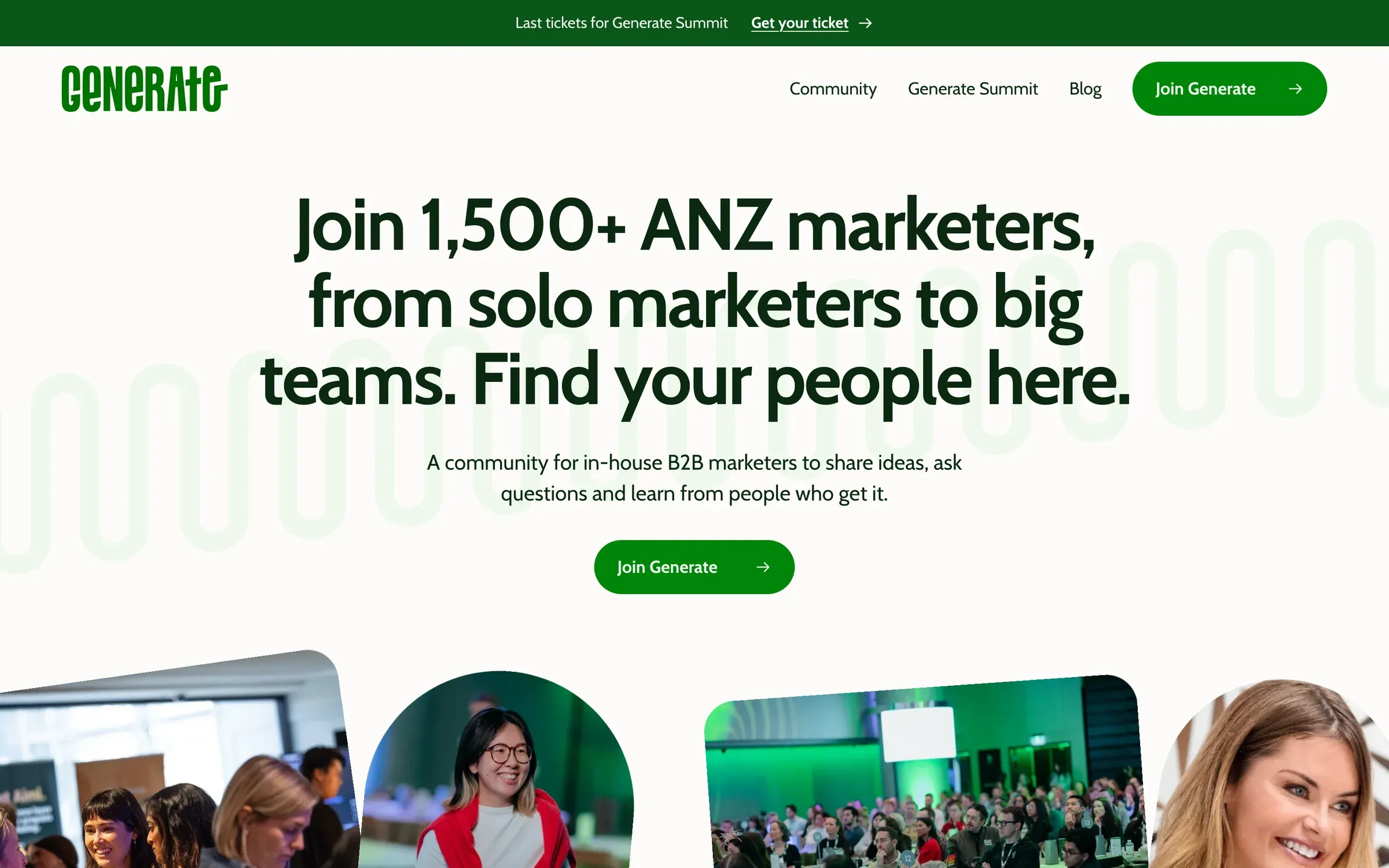
Generate’s new site. Its team makes changes by asking an AI assistant, and checks each one on a preview first.
When a site built this way suits you
We build client websites both ways. A site built as code, like ours, suits teams who want full control over design and performance, and who are happy to ask for a change and check it on a preview. Generate’s site works this way: its team asks an AI assistant for changes and checks each one on a preview before it goes live. Teams who want to edit pages visually, themselves, often suit Webflow, and we build those too (how we help teams choose).
Whichever way a site is built, previews and version control are what make AI edits safe to hand over. After handover, Will at New Word Order built a CMS collection, an insights hub and an article template on staging himself, using Claude connected through MCP. Then he asked us for a review of how the pages handled styles and classes, and for version control, because AI can “royally mess things up very quickly” (publishing pages without a developer).
Questions we get asked
Can Claude build a website if you don’t know how to code?
Yes, with a person directing it. For a complete site, use Claude Code, which works in your project’s files rather than a chat. You don’t need to write the code, but you need to know what good looks like and to review every change on a preview. On our site, every decision about design, copy and launch was ours.
Is Claude a website builder?
Not in the usual sense. Claude and Claude Code write a site’s code rather than giving you a drag-and-drop editor, and neither hosts it. Claude Code works in a framework you choose, such as Astro. You still need hosting, such as Vercel, and someone to direct and review the work.
How long does it take to build a website with Claude Code?
Ours took five days from the first build to launch, after the designs were set up in Paper. The first four pages took about 20 minutes; most of the time went into review, polish, content and the parts visitors don’t see.
Can our team update a site built this way?
Yes. Content lives in plain files rather than in the page code, and changes go to a preview first. Generate’s team updates its site by asking an AI assistant for a change and checking it on a preview before it goes live.
How much does it cost to build a website with Claude Code?
Claude Code comes with Claude’s paid plans: Pro is US$17 a month billed yearly, or US$20 monthly, as of October 2026. Add hosting, such as Vercel Pro at US$20 a month, and a design tool. The bigger cost is the time to direct, review and check the work.
If you’d like a site built this way, see our custom website development, or tell us about your project.