
Services
Strategy
We find the clearest path from what your business needs to what your website should do.
What’s included
- Page strategy
- Landing page strategy
- Site architecture
- Content planning
- Wireframes
- Migration planning




Branding
We shape a distinct visual identity that works on screen first and carries through everything you make.
What’s included
- Visual identity
- Brand refresh
- Colour & typography
- Moodboards & direction
- Brand guidelines
- Digital brand systems
Recent work


Design
We turn the plan into a distinct, usable design that feels right for your brand and works across every screen.
What’s included
- Website design
- UI design
- Responsive design
- Design systems
- Visual direction
- Content presentation


Development
We build fast, reliable websites in Webflow or with custom code, with the integrations each project needs.
What’s included
- Webflow development
- Custom website development
- Custom interactions
- Performance engineering
- CRM & email integrations
- Booking & payments


SEO & AI search
We make your site easy for search engines and AI assistants to find, understand and point people to.
What’s included
- Technical SEO
- AI search & AEO
- Structured data
- Answer-ready content
- Core Web Vitals
- AI crawler access
Optimisation
We keep improving what happens after launch, using real behaviour data to turn more visitors into enquiries.
What’s included
- Conversion optimisation
- A/B changes
- Landing pages
- Copy reworks
- Analytics & heatmaps
- Monthly improvements
Recent work


Latest
The newest posts, across every topic.



Design
Planning and designing websites, and the tools we use.



Development
Webflow, Astro, Claude Code, CMS choices and what builds really take.

SEO & AI search
Getting found in Google and quoted by AI assistants.


Studio
How we run projects, from proposals to launch week.



How to connect HubSpot forms to Webflow
Webflow HubSpot integration, step by step: how to connect HubSpot forms to Webflow, map fields, add tracking and consent, sync events and gate content.
- Written by
 Matthew Bishop
- Published
- Reading time
- 8 minutes
For most marketing teams on HubSpot, the best way to connect HubSpot and Webflow is to build your forms in HubSpot and place them with Webflow’s HubSpot app. Then switch on the HubSpot tracking code once, through the same app, set up to match your cookie consent. With Marketing Hub Professional or Enterprise, use the app’s developer embed, so the HubSpot form is styled in Webflow like everything else. Keep native Webflow forms mapped to HubSpot for short, text-only forms.
That’s how we set up Altus: the HubSpot tracking code runs across the whole Webflow site, HubSpot forms sit on the pages that need them, each with its own thank-you page, and the marketing team manages those forms in HubSpot. Here’s how the two fit together, and what to check before you launch.
Two ways to send forms to HubSpot
Webflow’s HubSpot app offers three ways to connect a form: an iframe embed, a developer embed, or a native Webflow form mapped to HubSpot (Webflow). The first two are HubSpot forms; the third is a Webflow form that HubSpot collects.
| Embedded HubSpot form | Webflow form mapped to HubSpot | |
|---|---|---|
| Setup | Built in HubSpot, placed with the app as an iframe or developer embed | Built in Webflow, connected with the app; HubSpot’s non-HubSpot forms setting must be on |
| Styling control | Iframe: styled in HubSpot. Developer embed: styled in Webflow, with Marketing Hub Professional or Enterprise | Full control, like any Webflow element |
| Field types | Any HubSpot field | Text inputs only in the current app; data lands in single-line text properties |
| Spam | HubSpot’s CAPTCHA and spam filters; the current app supports reCAPTCHA | Webflow’s bot blocking, spam filtering and reCAPTCHA |
| Consent | HubSpot’s data privacy element in the form | Consent wording on the page; checkboxes aren’t supported fields in the current app |
| Attribution | Tracking cookie sent with the submission; hidden fields can capture UTM values | Relies on the tracking code; HubSpot doesn’t collect hidden fields from these forms |
| Progressive fields | Legacy HubSpot forms only, on Professional or Enterprise | Not available |
| Who maintains it | The marketing team, in HubSpot. Iframe changes go live straight away; developer embeds need a refresh in Webflow | Whoever edits the Webflow site, keeping field names in step with HubSpot |
From Webflow’s and HubSpot’s help pages, October 2026. The current app only supports forms from HubSpot’s new form editor; legacy forms use Webflow’s legacy HubSpot app.
The trade is simple. A HubSpot form keeps every HubSpot feature and lets your team change it without touching the site. A Webflow form gives designers full control, but HubSpot only sees text fields, and it can’t send a follow-up email straight from those submissions (HubSpot).
How we connected HubSpot on Altus
Altus moved its site from WordPress to Webflow in 2026, and kept HubSpot for its marketing. We set it up so the two work as one:
- Tracking across the whole site. The HubSpot tracking code is added once and loads on every page, working alongside the site’s analytics and cookie consent.
- HubSpot forms where they’re needed. Pages such as the partner programme carry a HubSpot form, rendered on the page and styled to match the site. Each form sends people to its own thank-you page.
- Forms stay in HubSpot. The marketing team changes fields and follow-ups in HubSpot, without touching the Webflow site. We covered HubSpot forms in the team’s training after launch.
- Not everything is a HubSpot form. Booking a demo runs separately, so the HubSpot forms only handle the enquiries that belong in HubSpot.
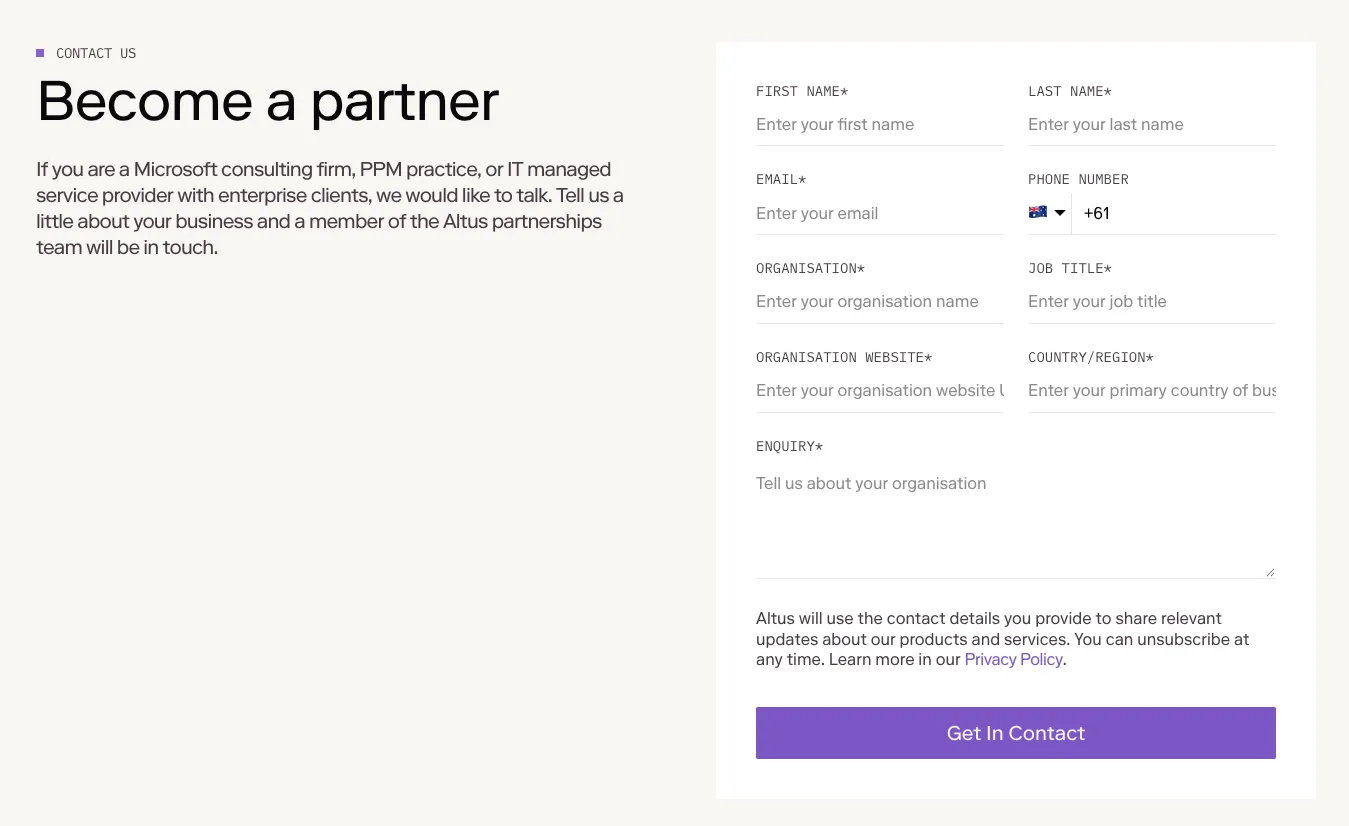
A HubSpot form on Altus’s partner programme page, styled in the site’s own type and colours. Submissions go straight into HubSpot.
Moving off HubSpot’s CMS: Fresh Clinics
Fresh Clinics went the other way round: its old site and blog were built in HubSpot’s CMS, and HubSpot stayed the CRM when the site moved to Webflow. We moved more than 150 articles into Webflow’s CMS with 324 redirects, gave each gated resource its own preview, form and download pages, and set up a sync that brings events, speakers and sponsors from HubSpot into the site twice a day.
The setup checklist
- List every form and its job. Note which HubSpot form, list and workflow each one feeds. Give every Webflow form block a unique name, because duplicate names can break the mapping (Webflow).
- Match field names to properties. HubSpot matches a Webflow form’s fields to properties by name and label, and they can’t be mapped by hand. Every collected form needs an email-type input (HubSpot).
- Capture source and UTM values. On HubSpot forms, hidden fields can store values from the page URL, such as UTM parameters (HubSpot). HubSpot doesn’t collect hidden fields from Webflow forms, so those rely on the tracking cookie, which links a visitor’s earlier page views to the contact when they submit (HubSpot).
- Install the tracking code once. Turn on “Track user activity on site” in the app, and don’t add the code anywhere else: with more than one on a page, only the first fires (HubSpot). Once it’s on, HubSpot can collect every Webflow form on the site, mapped or not, unless you switch that off in HubSpot (Webflow).
- Add your domains in HubSpot. Submissions to embedded forms from domains missing from HubSpot’s tracking settings are marked as spam (HubSpot). Add the staging domain while you test.
- Match tracking to your consent setup. The tracking code sets cookies, so it should follow the same rules as everything else in your privacy policy. HubSpot’s banner works on external domains with the tracking code (HubSpot), and a third-party consent tool can pass its choices to HubSpot instead (HubSpot). Visitors who decline still become contacts, without their page views.
- Build lists and workflows before launch. Every form should land somewhere useful in HubSpot from its first submission.
- Sync HubSpot data into the CMS, if you need it. Webflow’s Data API creates CMS items as drafts, then publishes them (Webflow). A HubSpot workflow can send a webhook with Data Hub Professional or Enterprise (HubSpot), or a sync tool such as Whalesync can map the fields.
- Gate content with a redirect. A HubSpot form can send people to any URL after they submit (HubSpot), so the download page can sit behind it. Keep that page out of the sitemap.
- Test every form on staging. Webflow’s own steps are to publish to staging and check submissions arrive in HubSpot before going live (Webflow). Submit each one, then check the contact, its properties and the workflow it joined.
- Moving off HubSpot’s CMS? Plan the content and the links. HubSpot exports blog posts as a spreadsheet (HubSpot), which you map into Webflow CMS collections. Every old address that changes needs a redirect to its closest new page (website migration SEO).
Questions we get asked
Does Webflow integrate with HubSpot?
Yes. Webflow’s HubSpot app embeds HubSpot forms as an iframe or a developer embed, connects native Webflow forms to HubSpot, adds the HubSpot tracking code and can add a HubSpot chatbot. You install it on each site, with a HubSpot account that can access your forms.
Should we use HubSpot forms or Webflow forms?
HubSpot forms, for most teams on HubSpot. They keep hidden fields, consent options, CAPTCHA and every field type, and your team edits them in HubSpot. Webflow forms mapped to HubSpot suit short, text-only forms where design matters most.
Do we need Marketing Hub Professional?
Only for some features. The developer embed, which lets you style HubSpot forms in Webflow, needs Marketing Hub Professional or Enterprise. Progressive fields, on legacy forms only, also need a Professional or Enterprise plan. Iframe embeds and Webflow forms mapped to HubSpot work without it.
Why aren’t Webflow form submissions showing in HubSpot?
Check that “Collect data from website forms” is on in HubSpot, that the tracking code loads on the page, and that the form has an email-type input. Field names need to match HubSpot’s properties, and hidden fields aren’t collected.
Can HubSpot data appear on a Webflow site?
Yes. Webflow’s Data API can create and publish CMS items, so events, people or resources kept in HubSpot can be synced into collections on a schedule or when they change. Fresh Clinics’ events sync from HubSpot twice a day.
The full stories are in the Altus and Fresh Clinics case studies. If you’re moving a HubSpot site to Webflow, see our website migration services and custom website development, or tell us about your project.
This guide is part of Webflow for marketing teams, which brings together everything we’ve written on choosing, building and running a Webflow site.
Sources
- Webflow, Install and use the HubSpot App
- Webflow, Install and use the legacy HubSpot App
- Webflow, HubSpot forms integration
- Webflow, Prevent spam in form submissions and Add a reCAPTCHA element
- Webflow Data API, Create collection items
- HubSpot, Use non-HubSpot forms and Non-HubSpot forms FAQ
- HubSpot, Style and embed HubSpot forms on an external site
- HubSpot, Create and edit forms
- HubSpot, Set property values with hidden form fields
- HubSpot, Use progressive fields in forms (legacy)
- HubSpot, Prevent and filter spam in form submissions
- HubSpot, Install the HubSpot tracking code
- HubSpot, Track visitors in HubSpot
- HubSpot, Set up cookie tracking settings and consent banners and Cookie banner API
- HubSpot, Use webhooks with HubSpot workflows
- HubSpot, Export web content and data
- Whalesync, Sync HubSpot and Webflow
- Altus case study
- Fresh Clinics case study